
Ticket Tracker
Take a ticket
Lite and Premium
What you'll do
Make a ticket yours so everyone can see who is handling it, either with Assign to me or by starting a reply with Reply now.
Steps
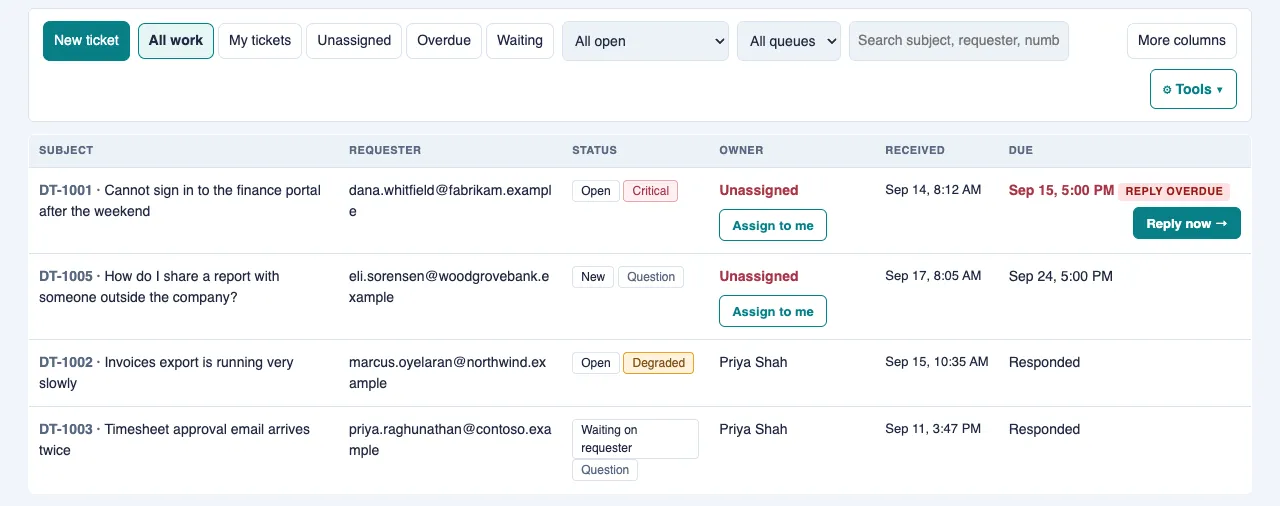
A ticket with no owner shows Unassigned in the Owner column. Taking it puts your name there for everyone.
Assign to me
- On the queue, find the ticket. Select Unassigned in the work views above the queue to see only tickets nobody has taken.
- Select Assign to me under Unassigned in the ticket's row. Your name appears in the Owner column right away.
- Or open the ticket and select Assign to me beside Owner.
Reply now
Reply now → appears on the queue beside a ticket whose reply is overdue (solid button) or due today (outlined button).
- Select Reply now → on the ticket's row.
- If nobody owns the ticket, it becomes yours and you see "assigned to you". The ticket opens with the reply box ready.
- Type your reply and select Send reply as. See Reply to the requester.
Tips
- Reply now never takes a ticket from someone else. If a colleague owns it, the reply box shows Owned by their name, with Assign to me beside it if you do want to take it over.
- Select My tickets to see only the tickets you own.
- If SLAs are switched off, Reply now → appears on every open ticket nobody has replied to yet, with the oldest first.
- Viewers can see who owns a ticket but cannot take one. Ask your administrator for the Ticket Editor role if you handle tickets.