
Ticket Tracker
Assign a ticket to a technician
Lite and Premium
What you'll do
Give a ticket to another technician with Assign to, and keep the list of technicians up to date.
Steps
Assign the ticket
- Select the ticket on the queue to open it.
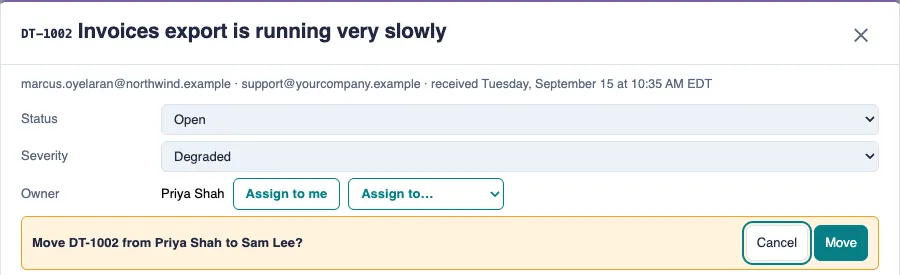
- Beside Owner, open the Assign to… list and choose the technician.
- If someone else already owns the ticket, the page asks first, for example "Move DT-1002 from Priya Shah to Sam Lee?" Select Move to confirm, or Cancel to leave it as it is.
- After you assign it, a line such as "Let Sam know:" shows Email and Teams chat links. Select one if you want to tell them. The Ticket Tracker does not send anything on its own.
Set the list of technicians
- Select Tools at the right of the toolbar, then Technicians.
- To add someone, type a name or email in Add from the site's people, choose the person in the list, and select Add.
- To take someone off, select Remove beside their name.
- Select Save.
Tips
- People appear in the Technicians list after they open the Ticket Tracker once. If someone is missing, ask them to open it, then add them.
- Until someone saves the list, Technicians suggests everyone who owns a ticket on the queue. Nothing is saved until you select Save.
- The new owner sees New on the ticket's row, and a count on My tickets, until they open it. This is remembered per browser, so another computer shows New until they open the ticket there.
- Each assignment is added to the ticket's conversation as a line, for example "Assigned to Sam Lee by Priya Shah."
- To take a ticket yourself, use Assign to me. See Take a ticket.