
Ticket Tracker
Reply to the requester
Lite and Premium
What you'll do
Send a reply to the person who raised a ticket, from your support address, and keep it on the ticket's conversation.
Steps
- Select the ticket on the queue to open it. You can also select Reply now → on its row.
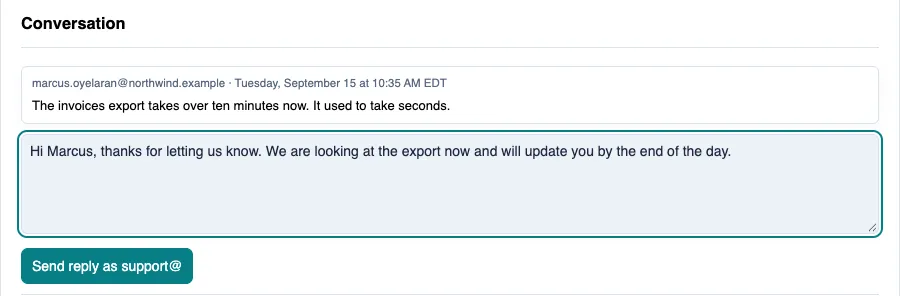
- Scroll to Conversation to read the original email and every message since.
- Type your reply in the box under the conversation.
- Select Send reply as (the button shows your support address, for example Send reply as support@).
- Check the message at the bottom of the page. It says which address the reply was sent as, and the reply appears in the conversation.
If you asked the requester a question, set the ticket's Status to Waiting on requester. See Change status and severity.
Tips
- The reply goes out from the support address the ticket arrived at, not from your own mailbox.
- When the requester answers, their message appears in the conversation. You do not need to copy anything from your inbox.
- If you ever reply from Outlook instead, keep the ticket tag (for example
[DT-12]) in the subject line. That tag is how a reply finds its ticket. - A reply from the app sends text only. To send a file back, send it from the support mailbox.
- If the page says it is not certain whether the reply was sent, check Sent Items in the support mailbox before you send it again.