
Project Tracker
Skip a task that doesn't apply
Lite and Premium
What you'll do
Mark a task as skipped for this project, with a reason, so it stays on the record without counting as work to do.
Steps
A task is skipped in the project template, because a skipped task needs a reason.
- Select Tools, then Project template.
- Under New or existing project, choose Add to: and the project's name. Its tasks load into the table.
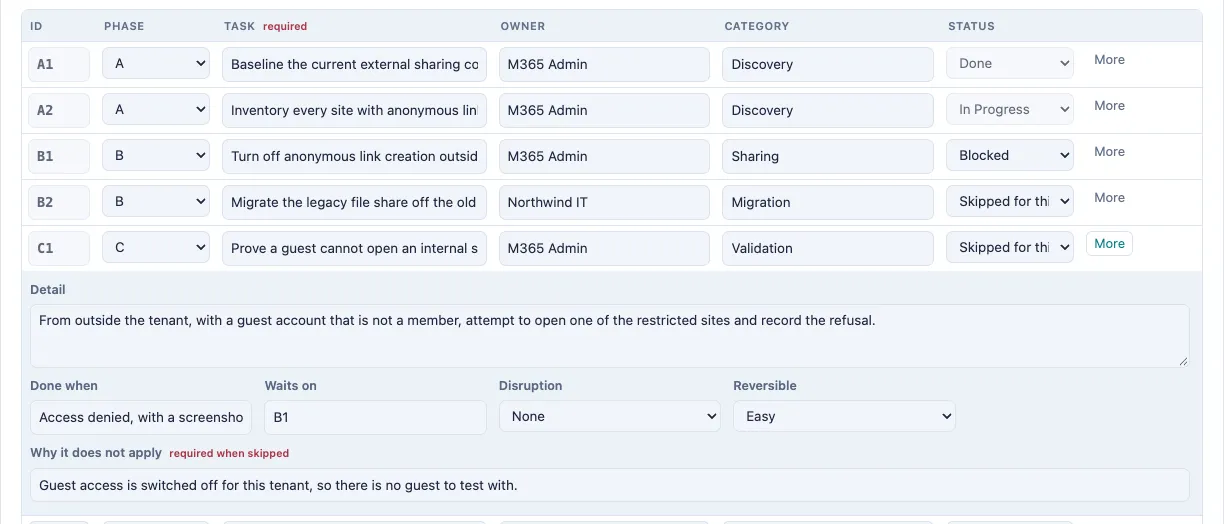
- Find the task's row. Under Status, choose Skipped for this project.
- Select More on that row.
- Type why the task doesn't apply under Why it does not apply.
- Select Check and read the preview. Nothing is written yet.
- Select Import to save the change.
Back on the board, the task is in the Skipped for this project strip below the columns. In the phase list it shows its reason.
Tips
- A skipped task stays on the record with its reason instead of being deleted, so anyone can see why it was left out.
- A skipped task no longer holds up the tasks that wait on it.
- A task that is Done or In Progress keeps its status in the template. To skip one that is In Progress, move it to Not started on the board first.
- To bring a skipped task back, open the project template again and change its Status to Not started.