
Project Tracker
Move tasks on the board and tick them done
Lite and Premium
What you'll do
Change a task's status by moving its card on the board, or tick it done in the phase list.
Steps
Move a card on the board
- Open a project. It opens on Board. If it shows the phase list, select Board.
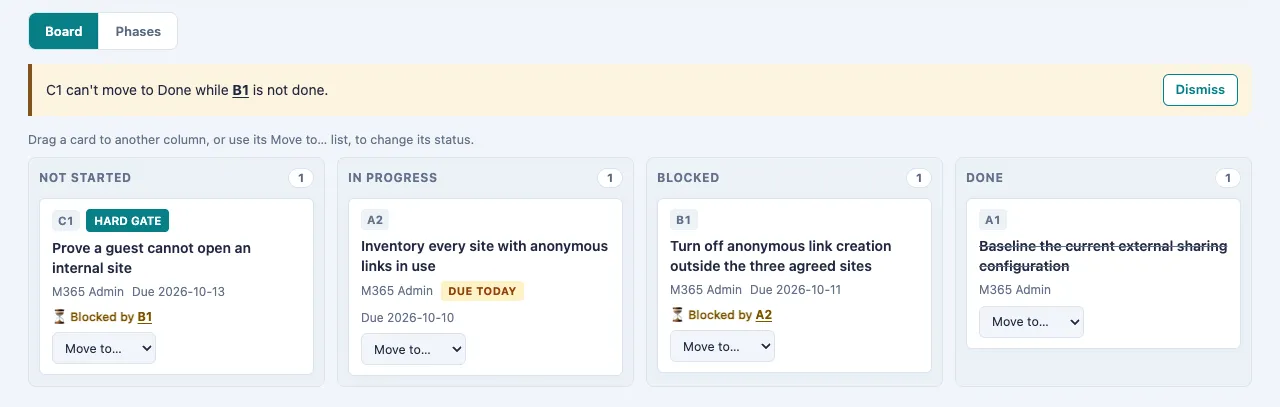
- Drag a card to another column: Not started, In progress, Blocked or Done.
- Or choose a column from the card's Move to… list. This works with a keyboard and on a phone.
The card moves straight away. If the save fails, it goes back to its column and a message says why.
Tick a task done
- Select Phases above the board.
- Tick the checkbox beside the task. Who finished it and when are recorded.
- To reopen a task, clear its checkbox. It goes back to the status it had before.
When a task can't be finished yet
- A task can't be finished while a task blocking it is still open. The move or tick is refused with a message such as "C1 can't move to Done while B1 is not done." Select the blocking task's ID to go to it. Finish that task first.
- A hard gate asks for evidence. When you move a task marked HARD GATE to Done, or tick it, a dialog titled Evidence for and the task's ID opens (for example, "Evidence for C1"). Type the evidence that it passed under Evidence, then select Mark done. The evidence is saved as the task's result. Select Cancel to leave the task as it was.
Tips
- The Edit task form doesn't offer Done. Finish a task with its checkbox or on the board, so who did it and when are recorded.
- The board uses the same search and filters as the phase list.
- (Premium) Turn on Group by owner to see one row of columns per owner.
- With the Project Viewer role the board is read-only: you can see every card but can't move it.