
Project Tracker
Plan your day with My day
Lite and Premium
What you'll do
See the tasks assigned to you across every project in one list, pick up unassigned work and tick tasks done.
Steps
- Select My day at the top of the page. When you have tasks on it, My day is the first screen you see.
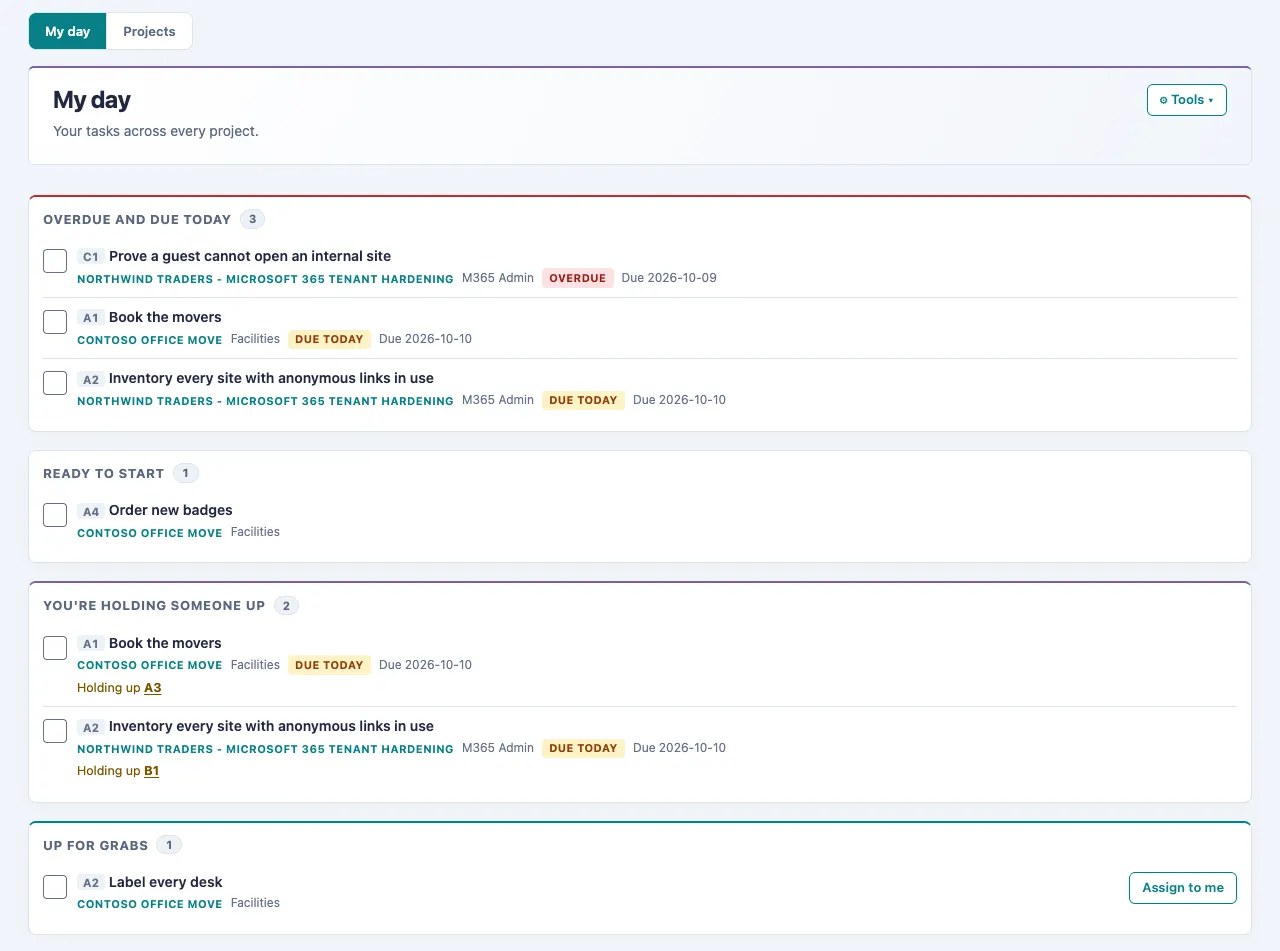
- Read the sections in order. Empty sections are hidden. - Overdue and due today: your open tasks that are late or due today, late ones first. - In progress: your tasks already under way. - Ready to start: your tasks that are not started and have nothing blocking them. - You're holding someone up: your unfinished tasks that another task is waiting on. Select the task ID after Holding up to see the task that is waiting. - Up for grabs: unassigned tasks that are ready to start.
- To take a task from Up for grabs, select Assign to me. It moves into your own sections.
- Select a task's title to open it in its project.
- When you finish a task, tick its checkbox.
- (Premium) To get a suggested order for your tasks, select Plan my day. Read the suggestion and check it before you act on it. Nothing is saved.
- Select Projects to go back to your project list.
Tips
- A task can't be ticked done while a task blocking it is still open. A hard gate asks for its evidence first. See Move tasks on the board and tick them done.
- To assign a task to someone else, open it, choose a name under Assigned to in the task form, and save.
- On a card in a project, Assign to me takes a task and Unassign gives back one of your own.
- With the Project Viewer role you can see My day, but you can't tick tasks or pick them up.
- If you don't see My day, your site needs an update before it can show who each task is assigned to. Ask your administrator.