
CRM
Use Today: what needs you now
Lite and Premium
What you'll do
Use the Today tab to see which deals need attention, in order of urgency, and act on each one in a single step.
Steps
Work through the list
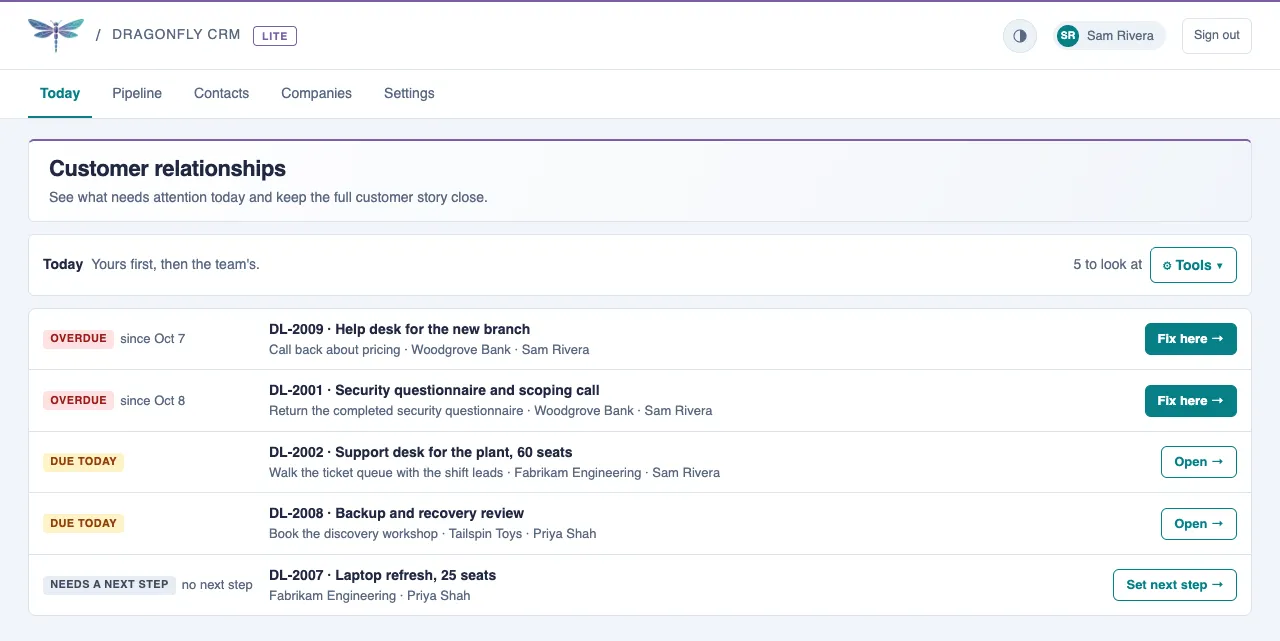
Today opens when you sign in. It is one list, most urgent first, with your own deals before the rest of the team's.
- Select the Today tab. The count at the top right shows how many items there are to look at.
- Read the label on the left of a row. Overdue means the deal's next step is past its due date. Due today means it is due today. Needs a next step means an open deal has no next step, or no due date for it.
- Select the button on the right of the row. Fix here opens the deal with its next step date ready to change. Set next step opens the deal with its next step ready to type. Open opens the deal.
- Update the next step and its date, then select Save. The row leaves the list once nothing is due.
Premium rows
On Premium, Today lists three more kinds of row, in the same list.
- Past close is an open deal past its expected close date. Select Open to look at it.
- Gone quiet is a deal with no activity for 10 business days. Select Log a call to log one.
- Follow-up is a step in a follow-up sequence that is due. Do the step, then select Mark done.
Tips
- Select a deal's title on any row to open it.
- A deal is listed once, under its most urgent reason. Any other reason shows as a smaller label beside it.
- The list refreshes itself every minute while the tab is open. To refresh now, open Tools and select Refresh.
- With the Viewer role, each row offers Open or View deal so you can read the deal without changing it.