
CRM
Email, call or Teams a contact from a deal
Lite and Premium
What you'll do
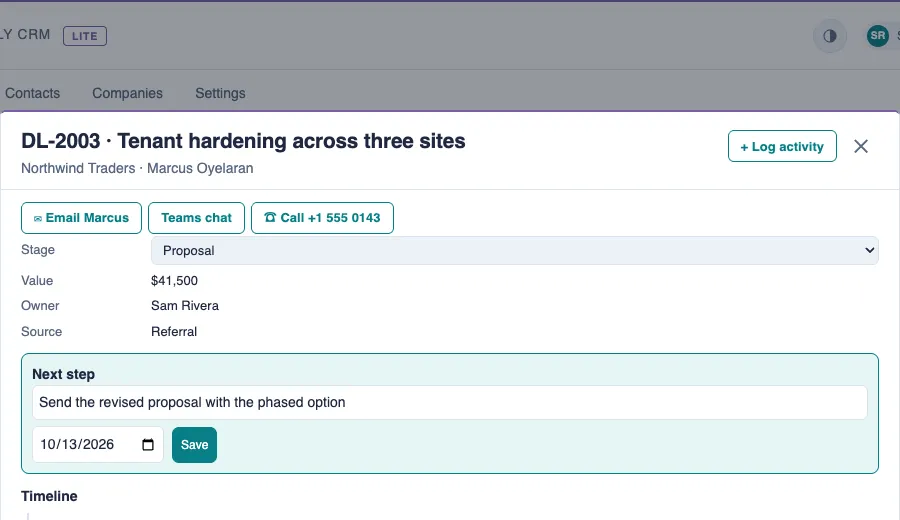
Use the buttons at the top of a deal to email, call or start a Teams chat with the deal's contact.
Steps
Email the contact
- Open the deal. Select its card on the Pipeline tab, or its title on the Today tab.
- Under the deal's title, select Email followed by the contact's first name, such as Email Marcus.
- Your mail app opens a new email to the contact, with the deal number and title as the subject. Write and send it there.
Start a Teams chat
- Open the deal.
- Select Teams chat. Teams opens a chat with the contact in a new browser tab.
Call the contact
- Open the deal.
- Select Call followed by the phone number. Your computer or phone opens its calling app with the number ready.
Tips
- The buttons use the contact's email address and phone number. Call shows only when the contact has a phone number, and there are no buttons when the deal has no contact.
- A contact's own record has the same buttons. Open the contact from the Contacts tab.
- Nothing is sent from the CRM. Your own mail app, Teams or phone does the sending.
- An email or call is not logged on its own. Select + Log activity on the deal afterward, or copy your organization's intake address on the email.