
CRM
Log a call, email or meeting
Lite and Premium
What you'll do
Record a call, email, meeting, note or task on a deal, contact or company so it shows on that record's timeline.
Steps
- Open the deal, contact or company. For a deal, select its card on the Pipeline tab. For a contact or company, select it on the Contacts or Companies tab.
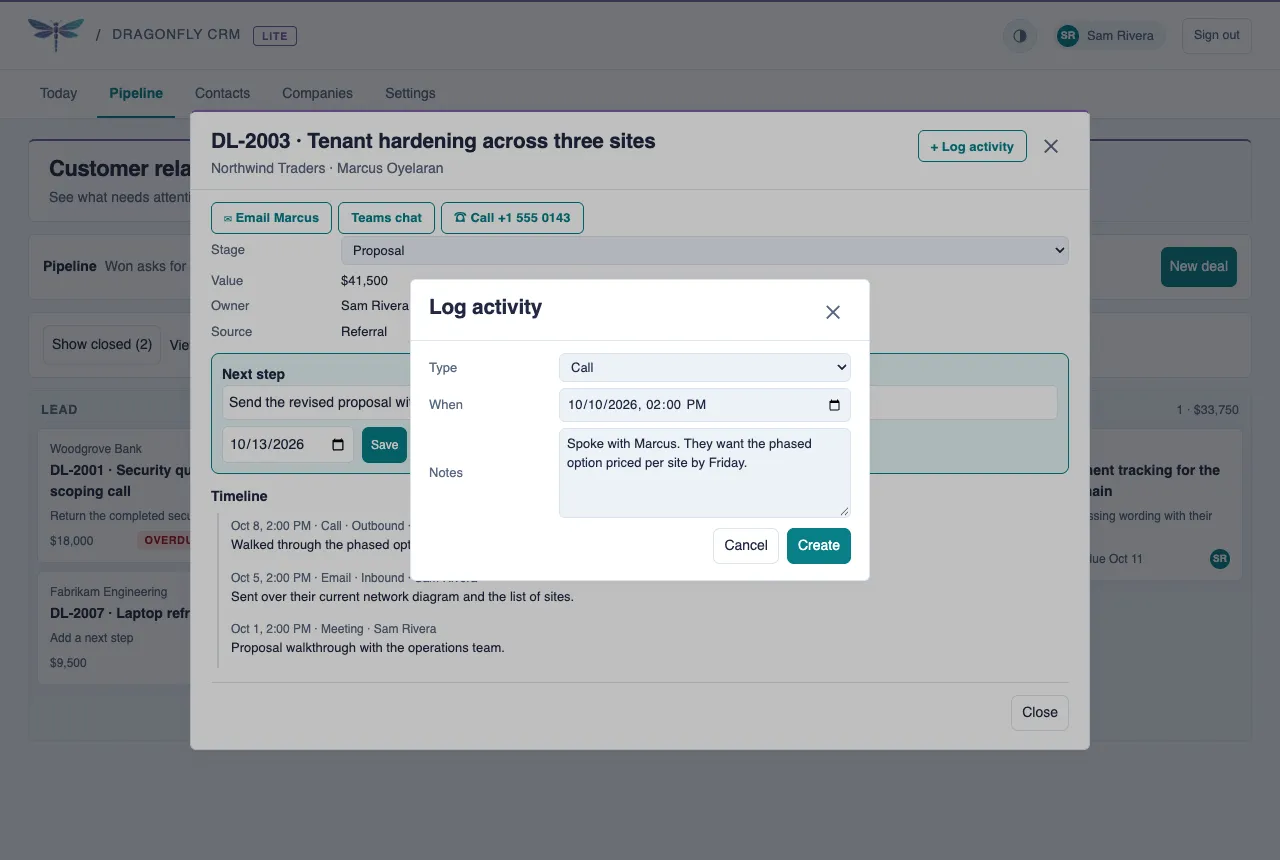
- Select + Log activity at the top of the record.
- Choose the Type: Note, Call, Email, Meeting or Task.
- Check When. It starts at the current date and time, so change it if the call or meeting was earlier.
- Type what happened in Notes.
- Select Create. The activity appears at the top of the record's Timeline.
Tips
- An activity logged on a deal is also linked to the deal's contact and company, so it shows on their timelines too.
- If a record has no activity yet, its timeline offers Log the first one.
- You do not have to log every email by hand. Copy your organization's intake address on an email to a contact, and it is logged on that contact's timeline.
- On the Today tab, a deal that has Gone quiet has a Log a call button that opens this form with Call already chosen (Premium).
- You need the CRM Editor role to log activities.