
CRM
Add a deal and move it through stages
Lite and Premium
What you'll do
Create a deal on the pipeline board, give it a next step, and move it from stage to stage until it is won or lost.
Steps
Add a deal
- Select the Pipeline tab.
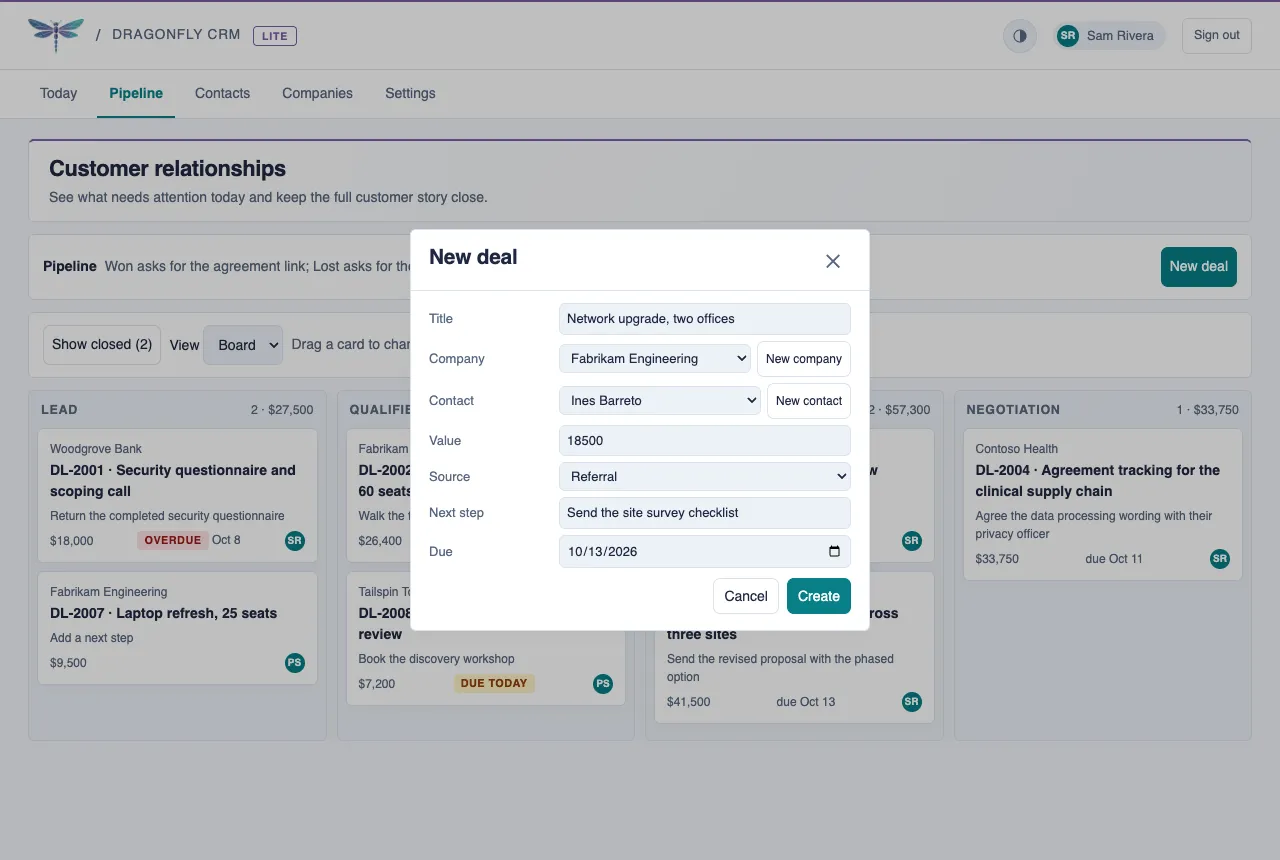
- Select New deal.
- Type a Title, such as what the customer is buying.
- Choose the Company and the Contact. If they are not in the CRM yet, select New company or New contact beside the field. Your deal draft is kept while you add them.
- Type the Value and choose the Source.
- Type the Next step and choose a Due date for it.
- Select Create. The deal gets a number, such as DL-2010, and appears in the first stage column.
Move a deal to another stage
- On the Pipeline tab, drag the deal's card to another stage column.
- Or select the card to open the deal, then choose a new Stage.
Mark a deal won or lost
- Open the deal and choose Won or Lost in Stage. To drag a card instead, select Show closed first so the Won and Lost columns are visible.
- For Won, paste the agreement's link in Agreement Tracker link, or leave it empty. If your organization also uses the Agreement Tracker, you can pick the agreement from a list instead.
- For Lost, choose a Reason.
- Select Confirm. Select Cancel to leave the deal where it was.
Tips
- Only Title is required, but a Next step with a Due date is what puts the deal on the Today tab when it needs you.
- (Premium) If your organization uses more than one pipeline, choose it in Showing before you select New deal. The new deal starts in that pipeline's first stage, and its won and lost stages may have other names, such as Renewed and Lapsed.
- A won or lost deal drops off the board. Select Show closed to see those deals again.
- To change the next step later, open the deal, edit Next step and its date, and select Save.
- You need the CRM Editor role to add or move deals. With the Viewer role you can read the board but not change it.