
Agreement Tracker
Add an agreement
Lite and Premium
What you'll do
Add a new agreement to the register, either by typing the key details or by importing a signed PDF.
Steps
Quick entry
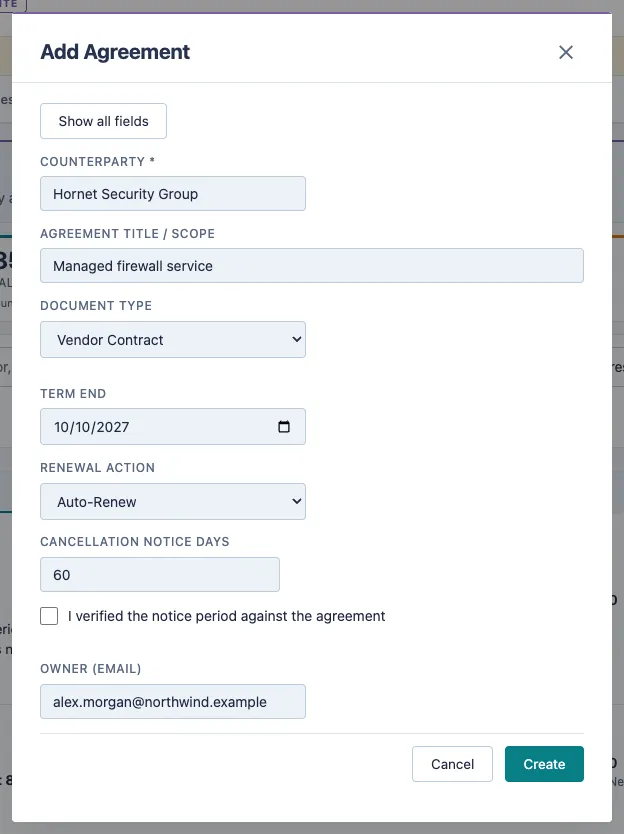
- On the Agreements tab, select + Add Agreement, then select Fill in manually.
- Type the Counterparty. It is the only required field.
- Add the Agreement title / scope and choose the Document Type.
- Enter the Term End date and choose the Renewal Action.
- If the agreement has a notice period, type the Cancellation notice days. Check I verified the notice period against the agreement once you have read it in the document.
- Type the Owner (email) of the person responsible for the agreement.
- To fill in anything else, such as the value, start date or contacts, select Show all fields.
- Select Create.
Import a PDF (Premium)
- On the Agreements tab, select + Add Agreement, then select Import from PDF.
- Choose the signed PDF. The app reads the document and fills in the form.
- Check each field in the Review imported contract form. Fields the app filled are marked, and Show all fields reveals any it filled outside the quick view.
- Correct anything that is wrong, then select Create.
Tips
- Import from PDF needs a PDF with selectable text. A scanned image cannot be read, so use Fill in manually instead.
- The imported PDF is saved with the agreement, so you can open it later with View Document.
- Only people with the Agreement Editor role can add agreements. Viewers can read them.
- To add many agreements at once, open Tools and select Import agreements.