
Agreement Tracker
Stay ahead of renewals
Lite and Premium
What you'll do
Use the Upcoming Deadlines view to see which agreements need a decision or notice next, soonest first.
Steps
- Select the Upcoming Deadlines tab.
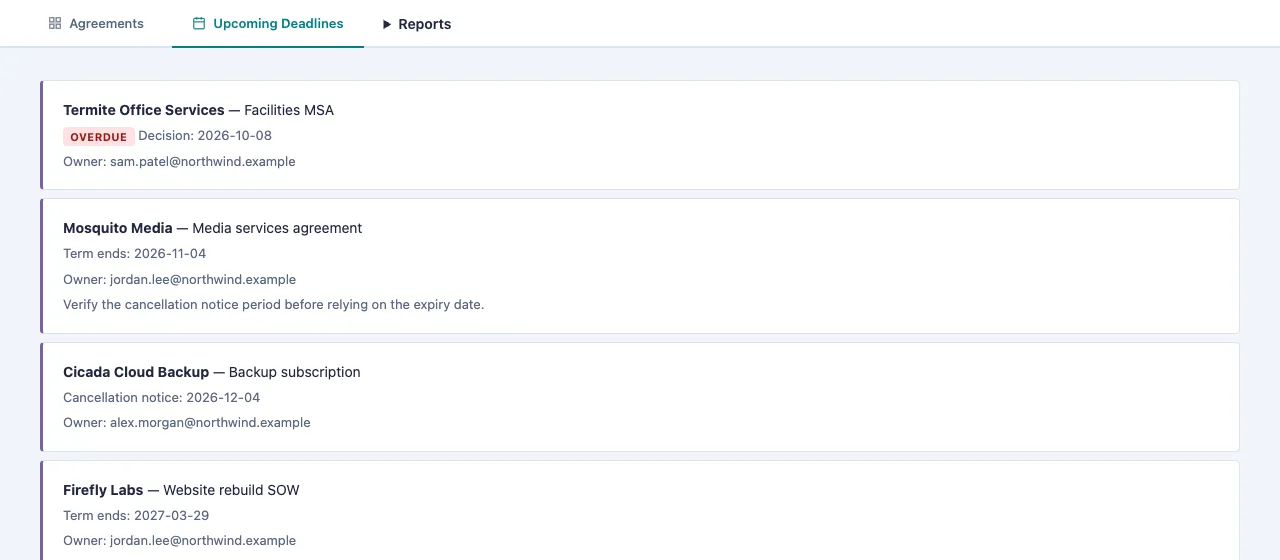
- Read the list from the top. Each active agreement shows its next deadline, its date and its owner, with the soonest first.
- Look for Overdue and Due today labels. These are the agreements to act on now.
- If an agreement says Verify the cancellation notice period before relying on the expiry date, open it on the Agreements tab, select Edit, and check I verified the notice period against the agreement once you have confirmed the notice days.
- To record a decision or a notice you sent, open the agreement on the Agreements tab and select Edit.
Tips
- The next deadline is the earliest of the Renewal Decision Due date, the Milestone date, the cancellation notice date and the Term End.
- The cancellation notice date only appears once the notice days are entered and verified. Until then, the list uses the term end, which may be later than your real deadline.
- On the Agreements tab, the tile that counts contracts expiring within 60 days lists them when you select it.
- Automatic renewal reminders by email are a Premium feature. Open Tools and select Reminders to see how reminders work on your plan.